Monday, 12 December 2016

Logitech Formula Force Drivers for Windows 10 64 Bit (x64)


Almost 20 years on, the Logitech Wingman Formula Force still works in windows. Released around the time USB was just arriving on the market, these robust wheels date from back in 1998.

Logitech discontinued driver development in 2006, however Saitek did release a 64bit driver based on the Immersion SDK. A primitive Force feedback design by today's standards, but it still works with most modern games.

This driver was adapted by Sly_North from the below Saitek source. 

To breath a new bit of life into the Logitech Wingman Formula Force, here is a Windows 10 Driver (signed) that will permit installation into Win10 x64 bit without the need to disable driver signing.

UPDATE [August 2022] - Ken830 has kindly provided the PIN outs for the DB9 to USB adapter

I measured all the pins of the DB9-to-USB cable... I did not find any connections between pins on the DB9 side -- all were open-circuit, and I checked it twice. 

Here's the pinout: 
    • DB9.1 <=> USB.1 (Vcc) 
    • DB9.5 <=> USB.4 (GND) 
    • DB9.8 <=> USB.3 (D+) 
    • DB9.9 <=> USB.2 (D-) 
    • DB9.Shield <=> USB.Shield


UPDATE [Jan 2020] - This driver no longer installs on fresh Windows 10 OS. This is due to MS changing signing requirements under fresh installs in Windows 10. The below driver is signed with SHA-1, which is no longer trusted, thus not supported in newer releases of Windows 10. I'm looking for a volunteer to re-sign these driver with SHA256 as per Practical Windows Code and Driver Signing

Enjoy!

SHA256 C132B429B25D1AC0186C65A699FE6AC3131827E3E13297E8F507325B2B31B047

Saitek Source (updated 9/5/19)
SHA256 ECC4B98757FFBF53501A7D239CE3FA3B4D05B9543F091CA156D9EDE1ED44DB6F

Last version of Logitech Gaming Software (LGS) to support the wheel (Windows XP 32bit)
lgs460enu.exe

Credits: Leshcat of leshcatlabs.net for signing the drivers to make this happen and to Sly_North for the original Saitek driver mod. (http://web.archive.org/web/20160102083612/http://forums.logitech.com/t5/Logitech-G-Controllers/Wingman-Formula-Force-and-Windows-7-x64/td-p/428223?nobounce)




Saturday, 1 October 2016

Automatically purge email from Gmail.

Here's a quick script I've knocked up that will purge/permanently email on a schedule that have a particular label and are in the trash/bin.

Make a copy of the script. Edit the parameters as required.

/*
  ****************************************************************************
  Name:PurgeGmail
  Version 1.01
  Date: 30/9/16
  Description: Script that will run automatically and permanently mail message
               based on a label + Bin 
  Author: Rob Ardill - G Guite Top Contributor
  Credits: Based on script http://www.labnol.org/internet/gmail-auto-purge/27605/
  Requires: Advanced Google Services + Gmail API enabled
  
  **************************** !!! IMPORTANT !!! ******************************
  
                     THIS SCRIPT WILL PERMANENTLY DELETE EMAIL.
                     NO WARRANTY PROVIDED OR LIABILITY ACCEPTED
                     INCORRECT USE OF THIS SCRIPT CAN LEAD TO LOSS
                     OF EMAIL!
  
  ****************************************************************************

INSTRUCTIONS
  
  1. Update the values of the field GMAIL_LABEL.
  2. Go to Resource -> Advanced Google Services and enable Gmail API.
  3. Go to Run -> Initialize and authorize the script.
  4. Go to Run -> Install to install the script.
  
  Follwign step 4, the script will now be active and will run every day at 1am permanently removing any email that is in the trasb/bin and with the GMAIL_LABEL.
  If there are more than 100 items to remove it will do so in batches of 100 every 2 minutes.
  
  * If you want the script to run more frequently, you can adjust the trigger in the Function Install()
  
MANUAL USE
  
  To manually run the script follow the above steps 1 to 3, then Go to Run -> purgeGmail
  
UNINSTALL

  To unistall the script go to Run -> Uninstall to stop the purging script anytime.

*/

https://script.google.com/d/1cyYaIvxV038OB4QRYU0gisLhJVADQi4EHE2QaGYnBdI1ImD0YmKnc16G/edit?usp=sharing


Saturday, 11 June 2016

PrimalForms CE - Community Edition (Free)

Sapien make some great tools and this is no exception. PrimalForms Community Edition is a Free version that has limited functionality.

I've used this for several OSS projects and it covers the essentials. The link on Sapien sites no longer works so below is a alternative link I've found. This version is 1.0.9.0 but an version 1.0.10 was released also according to the blog. Only obvious change is it adds a start page.


Update: Unfortunately Sapien or one of their representatives has mistakenly slapped DMCA on this link for the free edition and I've removed it, rather than fight it.  You can certainly find it via Google or ask the right person ;-)

Details
Version 1.0.9.0 
Filename: PrimalFormsCE.exe
Signed By: Sapien Technologies, Inc.
File size: 4,689,920 bytes
MD5:A4C4AF9A49423133AA8AB4A7C5745C10
SHA1: B6DD673290F4DED363BD3A6B5787A5332BCC79A6
SHA256:F4BB718BAC1C1E309F92EF465702E933179D195217C3CE51B99E4936AEA1F8A7

Version 1.0.1.0 was released, but I'm yet to find a copy of it.

Wednesday, 12 June 2013

"Path too long" when trying to delete folder - Robocopy to the rescue

One of the many long running mysteries of Windows, is why it's possible to create deep nested directories/files (>256 characters), but not be able to delete/navigate them.

Deep nested (long) directory path, most often manifest around the use of shared folders or the subst command and it can be a hassle to deal with.

There's a few tools around that are designed to target this exact problem, but hiding on everyones system* is a great little program called Robocopy that is primarily designed for copying files. However it can be used to delete them as well.

Here's how you can delete those path too long directories easily, using a single robocopy command.
  • Create an Empty directory
  • Open a command prompt (cmd.exe) - Elevate if necessary.
    • Open the Start menu and type "cmd".
    • Right click the shortcut and select "Run as administrator" 
  • At the command prompt type "robocopy /PURGE <path-to-empty-directory>  <path-to-long-directory>.
    Double check the paths, else risk deleting the wrong files/directory
  • Hit Enter to start the process.
* Robocopy comes standard with Vista and above operating systems. If you are running XP or older, then you can obtain Robocopy as a part of the  Windows Server 2003 Resource Kit Tools

Tuesday, 28 May 2013

Prevent Java updates from installing sponsor apps and toolbars like Ask and McAfee

Updated for new sponsors: See option 3,4 & 5 for newer versions of Java that bundle Amazon assist.

If you are like me and sick of uninstalling foist-ware like IAC Ask toolbar or McAfee Antivirus scanner, then here's a little trick to prevent future Java updates re-installing that pesky sponsored/bundled software.

Previously the only option was install the offline edition of the Java installer.

Note: These registry settings also block other foist-ware, such as Google Toolbar / Chrome etc.

Option 1

Open Notepad and paste in the following text. Then save the file with a .reg extension. Exit Notepad and then double click the .reg file you just created. When prompted by the Registry Editor to Continue. Click "Yes".

Windows Registry Editor Version 5.00
[HKEY_LOCAL_MACHINE\SOFTWARE\JavaSoft]
"SPONSORS"="DISABLE"
[HKEY_LOCAL_MACHINE\SOFTWARE\Wow6432Node\JavaSoft]
"SPONSORS"="DISABLE"


Option 2

Press the [Windows Key] + R or select the start menu type and select the "run" shortcut. Then copy/paste the below lines into the "Run" window and select OK. Repeat the process for both lines.

reg ADD HKLM\SOFTWARE\JavaSoft /v SPONSORS /t REG_SZ /d DISABLE /f
reg ADD HKLM\SOFTWARE\Wow6432Node\JavaSoft /v SPONSORS /t REG_SZ /d DISABLE /f


Option 3

Edit the "C:\ProgramData\Oracle\Java\java.settings.cfg" file and add the line below.
SPONSORS=0

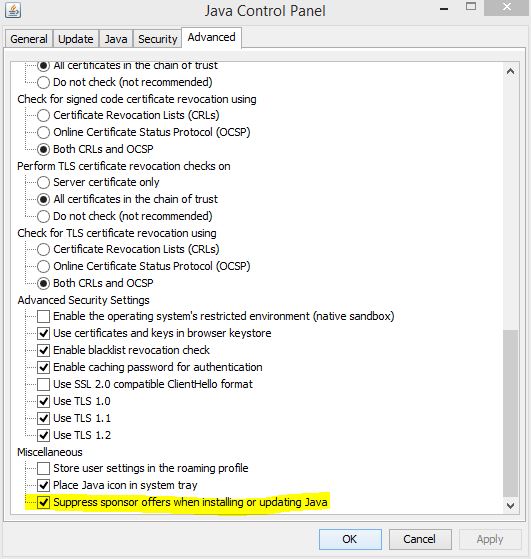
Option 4

If a previous version is installed, Use the Configure Java GUI.


Option 5

Execute ssvagent.exe (with local admin rights) with the -disablesponsorofferings switch.
"C:\Program Files (x86)\Java\<version>\bin\ssvagent.exe" -disablesponsorofferings

Saturday, 12 January 2013

Ricoh Card Reader drivers

Looking for the Ricoh card reader drivers? So was I. After a long winded search to locate these drivers, I thought post these here. These drivers are for Windows XP

rmedia.zip contains
  • RMEDIA.CAT
  • RMedia.inf ( 12/18/2002,1.03.00.02)
  • RMedia.sys


Ricoh RL5C476 CardBus Controller
Ricoh MediaCard Controller
Ricoh MediaCard DriverInstDisk

Ricoh MediaCard Controller
Ricoh SmartMedia Controller
Ricoh Memorystick Controller
Ricoh SD/MMC Controller

Driver supports the following hardware ID's

PCMCIA\RICOH-Bay_Controller-2AD9
PCMCIA\RICOH-Bay_Controller-3447
PCMCIA\RICOH-Bay_Controller-2EA3
PCMCIA\RICOH-Bay_Controller-1632
PCMCIA\RICOH-Bay_Controller-70E4
PCMCIA\RICOH-Bay_Controller-8360
PCMCIA\RICOH-Bay_Controller-6363
PCMCIA\RICOH-Bay_Controller-A962
PCMCIA\RICOH-Bay_Controller-ECD8
PCMCIA\RICOH-Bay_Controller-1E26
PCMCIA\RICOH-Bay_Controller-03CB
PCMCIA\RICOH-Bay1Controller-F03E
PCMCIA\RICOH-Bay2Controller-F960
PCMCIA\RICOH-Bay4Controller-CE3E 

Friday, 12 October 2012

How to uninstall Bigpond Security without the password

If you're unfortunate enough to have purchased this terrible product, only to find you cannot uninstall it as either your bigpond account no longer exists or you've forgotten the password, below is an easy way remove the password so, you can uninstall easily.

Note: if you are not familiar with using regedit, I suggest you seek advice from a professional. I take no responsibility for and damage or loss as a result of using the below guide.

These instruction apply to v1.5. Newer versions may differ.
  1. Open regedit (Start menu -> run) or shortcut Windows Key + R
  2. type in regedit and click okay
  3. Navigate through the registry tree and find the key below 

    [HKEY_LOCAL_MACHINE\SOFTWARE\Authentium\Curtains\v1.5]
  4. Find the values starting with LLC and rename them.
    ie.
    LLC_me@bigpond.com -> disabledLLC_me@bigpond.com
    LLCID -> disabledLLCID
  5.  Restart and then proceed with the uninstall without being prompted for the password.